GemNav User Guide
select "Translate ...".
Then, change the language.
GemNav is a Chrome extension designed to help you:
- Organize your Google Gemini chats
- Navigate through chats
- Navigate through prompts
- Export a chat
This is GemNav-v100 was tested on March 17th, 2026. We have to update GemNav if Chrome or Gemini changes rules. So, it is possible that some features might break over time.
1. "First Minute" Scan
If you have a long history of Gemini chats, you don't need to organize them manually. The First Minute feature does the heavy lifting for you.
- Open your GemNav extension.
- Click on the GemNav logo.
- Click on First Minute in the GemNav menu.
- GemNav will automatically scroll through your Gemini history and scan all your existing chats.
- Duplicates: During the scan, GemNav identifies chats with the exact same title. You will be shown a list of duplicates so you can review them. (Note: To rename or permanently delete a chat, you must use Gemini's native sidebar).
- AI Organization: Once the scan is complete, click Save All. GemNav will automatically create a temporary chat and ask Gemini to categorize your history into logical folders (e.g., Science, IT, Economy, etc.).
- Follow the on-screen wizard to complete the operations!
2. Navigation
Icons:
To scroll chats on Gemini's sidebar
To scroll the open chat's Prompts
To expand GemNav's sidebar horizontally or vertically
To hide GemNav sidebar
Drag:
You can hold the logo and drag the sidebar. Some exceptions may apply.
You can drag the blue borders of GemNav sidebar.
GemNav menu:
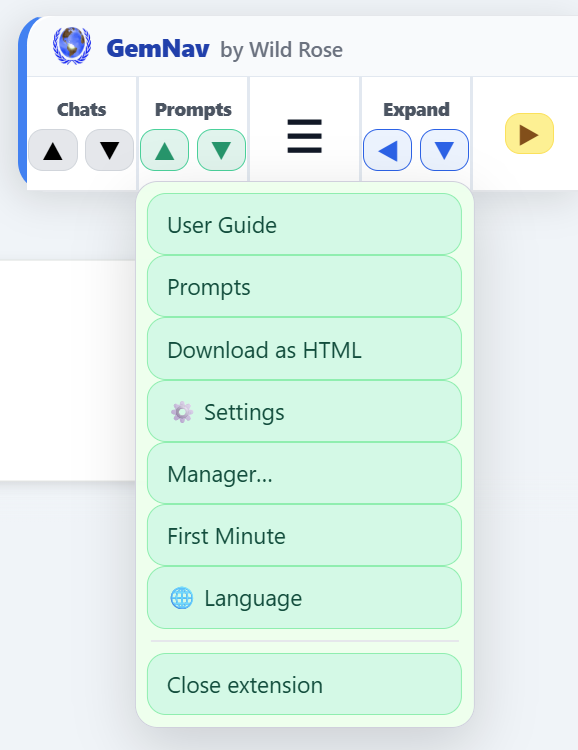
You can open GemNav menu by clicking logo or hamburger icon.
Enjoy mini GemNav sidebars. Go to settings in GemNav menu and pick your sidebar header: compact, horizontal, vertical and circular.
If sidebar is not expanded you will see mini sidebars: compact, horizontal, vertical and circular. You can drag them vertically or horizontally by dragging GemNav logo.
3. Managing Folders
Select Manager from the GemNav menu.GemNav allows you to create up to two levels of hierarchy (Folders and Subfolders) to keep your workspace pristine.
- Create a Folder: Click the + icon at the top of the "User Folders" section.
- Create a Subfolder: Click the + icon next to an existing folder to add a subfolder inside it.
- Expand/Collapse: Click the arrow (▸ or ▾) or simply click the folder's name to show or hide its contents.
- Sorting: Click the A button to sort a folder alphabetically by name, or the 🕒 button to sort it by the date you last viewed the chat. Click again to reverse the order.
- Delete a Folder: Click the × button next to a folder. (Note: This only removes the folder from GemNav; it does not delete your actual chats from Google).
ToOrganize folder: Newly discovered chats are placed here. You can drag them into your personal folders when you are ready.
Last10 folder: You can not move the chats in Lats10 Folder
4. Moving Chats
A- On manager page:Select Manager from the GemNav menu.
Manager page has Left and Right panes. Rigt pane is only for dropping chats.
There is a Utility row above these 2 panes.
How to move chats:
Select chats on the Left pane. (Click the checkbox next to several chats.)
Click "Move selected" on Utility row. <
Select target folder on the Right pane.
B- Both on expanded sidebar and manager page:
Select chats. (Click the checkbox next to several chats.)
Click, hold and drag any chat link.
Drop the chats when target folder is highlighted.
5. Prompts
- Open the chat you want to extract prompts from.
- Select Prompts from the GemNav menu.
- GemNav will scan the conversation and open an overlay displaying every prompt you typed.
This might take more than a minute.
Prompts on overlay will be truncated. To see full prompt click "Copy". - Navigating Prompts: Click Go next to a prompt, and GemNav will automatically scroll the page directly to that message.
- Mini Mode: Click Mini to shrink the overlay into a compact window, allowing you to read your prompts while still interacting with Gemini.
6. Download as HTML: Export a chat
You can export an entire chat into a clean, offline HTML file to save locally or share.
- Open the chat you wish to save.
- Select Download as HTML from the GemNav menu.
- GemNav will scan the open chat and extract all prompts and answers. This might take more than a minute. Then GemNav will ask you for confirmation.
- If you click Download HTML, you will get all prompts and answers in one HTML file.
Code blocks will be folded for your convenience, but you can unfold them.
However, media files will not be included in the HTML file.
7. PRIVACY
GemNav does not send your data anywhere. Everything is saved directly on your device.
GemNav does not edit, delete, or rename your chats.
GemNav creates one Gemini chat every time you run 'First Minute'. GemNav does not need that chat after First Minute operations are completed. However, we won't delete it automatically; you can choose to keep or delete that chat yourself.
Please read our official Privacy Policy for more details.
8. Uninstall GemNav
If you wish, you can remove all GemNav data before uninstalling GemNav. This will completely wipe out all your folders and settings inside the extension.
GemNav is a browser extension. Once your data is wiped, you can completely uninstall the extension by following your browser's instructions regarding "How to uninstall an extension".
101. Diagnostics
If something isn't working right, GemNav has a built-in health checker.
Press Ctrl / Cmd + Shift + D (while not typing in a text box) to run a self-test. You can copy the resulting report to help troubleshoot any issues.
102. Developer
Kevin Hüsnü Yilmaz
Contact: husnu.net/contactus-1.php
App:
Built v100: March 2026
Last update v100: March 2026